Search This Blog

Showing posts with label ASP .NET Core. Show all posts

Tuesday, 21 March 2017

dotnet publish - ASP.NET Core app deployed to Pivotal Cloud Foundry

I previously showed how to push a ASP .NET Core application to Pivotal Cloud Foundry by just using the source code files itself. It turns out this creates a rather large droplet and hence slows down the deployment. So here we are going to take the same demo and use "dotnet publish" to make this a lot faster. The previous post is here which is the base for this blog entry itself.

ASP.NET Core app deployed to Pivotal Cloud Foundry
http://theblasfrompas.blogspot.com.au/2017/03/aspnet-core-app-deployed-to-pivotal.html

First we need to make some changes to our project

1. Open "dotnet-core-mvc.csproj" and add "RuntimeIdentifiers" inside the "PropertyGroup" tag
  
<PropertyGroup>
    <TargetFramework>netcoreapp1.0</TargetFramework>
    <RuntimeIdentifiers>osx.10.10-x64;osx.10.11-x64;ubuntu.14.04-x64;ubuntu.15.04-x64;debian.8-x64</RuntimeIdentifiers>
</PropertyGroup>


2. Perform a "dotnet restore" as shown below either form a terminal windows/prompt or from Visual Studio Code itself , this step is vital and is required

pasapicella@pas-macbook:~/pivotal/software/dotnet/dotnet-core-mvc$ dotnet restore
....

3. Now lets publish this as Release and ensure we target the correct runtime. For Cloud Foundry (CF) that will be "ubuntu.14.04-x64" and the framework version is 1.0 as we created the application using 1.0 , we could of used 1.1 here if we wanted to.

pasapicella@pas-macbook:~/pivotal/software/dotnet/dotnet-core-mvc$ dotnet publish --output ./publish --configuration Release --runtime ubuntu.14.04-x64  --framework netcoreapp1.0
Microsoft (R) Build Engine version 15.1.548.43366
Copyright (C) Microsoft Corporation. All rights reserved.

  dotnet-core-mvc -> /Users/pasapicella/pivotal/software/dotnet/dotnet-core-mvc/bin/Release/netcoreapp1.0/ubuntu.14.04-x64/dotnet-core-mvc.dll

4. Finally cd into the "Publish" folder and verify there are the required DLL's as well as project files, JSON files , everything ready to run your application.

pasapicella@pas-macbook:~/pivotal/software/dotnet/dotnet-core-mvc/publish$ ls -lartF
total 116848
-rwxr--r--    1 pasapicella  staff    25992 Jun 11  2016 Microsoft.Win32.Primitives.dll*

..

-rwxr--r--    1 pasapicella  staff      168 Mar 16 22:33 appsettings.Development.json*
drwxr-xr-x    7 pasapicella  staff      238 Mar 21 08:01 wwwroot/
-rwxr--r--    1 pasapicella  staff     1332 Mar 21 08:01 dotnet-core-mvc.pdb*
-rwxr--r--    1 pasapicella  staff     8704 Mar 21 08:01 dotnet-core-mvc.dll*
drwxr-xr-x    6 pasapicella  staff      204 Mar 21 08:01 Views/
drwxr-xr-x   16 pasapicella  staff      544 Mar 21 08:01 ../
-rwxr--r--    1 pasapicella  staff      362 Mar 21 08:01 web.config*
drwxr-xr-x   79 pasapicella  staff     2686 Mar 21 08:01 refs/
-rwxr--r--    1 pasapicella  staff       92 Mar 21 08:01 dotnet-core-mvc.runtimeconfig.json*
-rwxr--r--    1 pasapicella  staff   297972 Mar 21 08:01 dotnet-core-mvc.deps.json*
drwxr-xr-x  212 pasapicella  staff     7208 Mar 21 08:01 ./

5. Now this time lets "cf push" using the files in the "Publish" folder and

pasapicella@pas-macbook:~/pivotal/software/dotnet/dotnet-core-mvc/publish$ cf push pas-dotnetcore-mvc-demo -b https://github.com/cloudfoundry/dotnet-core-buildpack -m 512m
Creating app pas-dotnetcore-mvc-demo in org apples-pivotal-org / space development as papicella@pivotal.io...
OK

Using route pas-dotnetcore-mvc-demo.cfapps.io
Binding pas-dotnetcore-mvc-demo.cfapps.io to pas-dotnetcore-mvc-demo...
OK

Uploading pas-dotnetcore-mvc-demo...
Uploading app files from: /Users/pasapicella/pivotal/software/dotnet/dotnet-core-mvc/publish
Uploading 14.8M, 280 files
Done uploading
OK

Starting app pas-dotnetcore-mvc-demo in org apples-pivotal-org / space development as papicella@pivotal.io...
Creating container
Successfully created container
Downloading app package...
Downloaded app package (23.7M)
-----> Buildpack version 1.0.13
ASP.NET Core buildpack version: 1.0.13
ASP.NET Core buildpack starting compile
-----> Restoring files from buildpack cache
       OK
-----> Restoring NuGet packages cache
-----> Extracting libunwind
       libunwind version: 1.2
       OK
       https://buildpacks.cloudfoundry.org/dependencies/manual-binaries/dotnet/libunwind-1.2-linux-x64-f56347d4.tgz
       OK
-----> Saving to buildpack cache
       Copied 38 files from /tmp/app/libunwind to /tmp/cache
       OK
-----> Cleaning staging area
       OK
ASP.NET Core buildpack is done creating the droplet
Exit status 0
Uploading droplet, build artifacts cache...
Uploading build artifacts cache...
Uploading droplet...
Uploaded build artifacts cache (995K)
Uploaded droplet (23.8M)
Uploading complete
Destroying container
Successfully destroyed container

1 of 1 instances running

App started


OK

App pas-dotnetcore-mvc-demo was started using this command `cd . && ./dotnet-core-mvc --server.urls http://0.0.0.0:${PORT}`

Showing health and status for app pas-dotnetcore-mvc-demo in org apples-pivotal-org / space development as papicella@pivotal.io...
OK

requested state: started
instances: 1/1
usage: 512M x 1 instances
urls: pas-dotnetcore-mvc-demo.cfapps.io
last uploaded: Mon Mar 20 21:05:08 UTC 2017
stack: cflinuxfs2
buildpack: https://github.com/cloudfoundry/dotnet-core-buildpack

     state     since                    cpu    memory          disk          details
#0   running   2017-03-21 08:06:05 AM   0.0%   39.2M of 512M   66.9M of 1G

Friday, 17 March 2017

ASP.NET Core app deployed to Pivotal Cloud Foundry

This post will show you how to write your first ASP.NET Core application on macOS or Linux and push it to Pivotal Cloud Foundry without having to PUBLISH it for deployment.

Before getting started you will need the following

1. Download and install .NET Core
2. Visual Studio Code with the C# extension.
3. CF CLI installed https://github.com/cloudfoundry/cli

Steps

Note: Assumes your already logged into Pivotal Cloud Foundry and connected to Pivotal Web Services (run.pivotal.io), the command below shows I am connected and targeted

pasapicella@pas-macbook:~$ cf target
API endpoint:   https://api.run.pivotal.io
API version:    2.75.0
User:           papicella@pivotal.io
Org:            apples-pivotal-org
Space:          development

1. Create new project

pasapicella@pas-macbook:~/pivotal/software/dotnet/dotnet-core-mvc$ dotnet new mvc --auth None --framework netcoreapp1.0
Content generation time: 278.4748 ms
The template "ASP.NET Core Web App" created successfully.

2. Restore as follows

pasapicella@pas-macbook:~/pivotal/software/dotnet/dotnet-core-mvc$ dotnet restore
  Restoring packages for /Users/pasapicella/pivotal/software/dotnet/dotnet-core-mvc/dotnet-core-mvc.csproj...
  Generating MSBuild file /Users/pasapicella/pivotal/software/dotnet/dotnet-core-mvco/obj/dotnet-core-mvc.csproj.nuget.g.props.
  Generating MSBuild file /Users/pasapicella/pivotal/software/dotnet/dotnet-core-mvc/obj/dotnet-core-mvc.csproj.nuget.g.targets.
  Writing lock file to disk. Path: /Users/pasapicella/pivotal/software/dotnet/dotnet-core-mvc/obj/project.assets.json
  Restore completed in 1.09 sec for /Users/pasapicella/pivotal/software/dotnet/dotnet-core-mvc/dotnet-core-mvc.csproj.

  NuGet Config files used:
      /Users/pasapicella/.nuget/NuGet/NuGet.Config

  Feeds used:
      https://api.nuget.org/v3/index.json

3. At this point we can run the application and see what it looks like in a browser

pasapicella@pas-macbook:~/pivotal/software/dotnet/dotnet-core-mvc$ dotnet run
Hosting environment: Production
Content root path: /Users/pasapicella/pivotal/software/dotnet/dotnet-core-mvc
Now listening on: http://localhost:5000
Application started. Press Ctrl+C to shut down.


Now to prepare this demo for Pivotal Cloud Foundry we need to make some changes to he generated code as shown in the next few steps

4. In Visual Studio Code, under the menu item “File/Open” select the “dotnet-core-mvc” folder and open it. Confirm all messages from Visual Studio Code.


The .NET Core buildpack configures the app web server automatically so you don’t have to handle this yourself, but you have to prepare your app in a way that allows the buildpack to deliver this information via the command line to your app

5. Open "Program.cs" and modify the Main() method as follows adding "var config = ..." and ".UseConfiguration(config)" as shown below
  
using System;
using System.Collections.Generic;
using System.IO;
using System.Linq;
using System.Threading.Tasks;
using Microsoft.AspNetCore.Hosting;
using Microsoft.Extensions.Configuration;

namespace dotnet_core_mvc
{
    public class Program
    {
        public static void Main(string[] args)
        {
            var config = new ConfigurationBuilder()
                    .AddCommandLine(args)
                    .Build();

            var host = new WebHostBuilder()
                .UseKestrel()
                .UseConfiguration(config)
                .UseContentRoot(Directory.GetCurrentDirectory())
                .UseIISIntegration()
                .UseStartup<Startup>()
                .Build();

            host.Run();
        }
    }
}

6. Open "dotnet-core-mvc.csproj" and add the following dependency "Microsoft.Extensions.Configuration.CommandLine" as shown below
  
<Project Sdk="Microsoft.NET.Sdk.Web">

  <PropertyGroup>
    <TargetFramework>netcoreapp1.0</TargetFramework>
  </PropertyGroup>


  <ItemGroup>
    <PackageReference Include="Microsoft.AspNetCore" Version="1.0.4" />
    <PackageReference Include="Microsoft.AspNetCore.Mvc" Version="1.0.3" />
    <PackageReference Include="Microsoft.AspNetCore.StaticFiles" Version="1.0.2" />
    <PackageReference Include="Microsoft.Extensions.Logging.Debug" Version="1.0.2" />
    <PackageReference Include="Microsoft.Extensions.Configuration.CommandLine" Version="1.0.0" />
    <PackageReference Include="Microsoft.VisualStudio.Web.BrowserLink" Version="1.0.1" />
  </ItemGroup>


</Project>


7. File -> Save All

8. Jump back out to a terminal windows, you can actually restore from Visual Studio Code IDE BUT I still like to do it from the command line

pasapicella@pas-macbook:~/pivotal/software/dotnet/dotnet-core-mvc$ dotnet restore
...

9. Deploy to Pivotal Cloud Foundry as follows, you will need to use a unique name so replace "pas" with your own name that should do it.

$ cf push pas-dotnetcore-mvc-demo -b https://github.com/cloudfoundry/dotnet-core-buildpack -m 512m

** Output **

pasapicella@pas-macbook:~/pivotal/software/dotnet/dotnet-core-mvc$ cf push pas-dotnetcore-mvc-demo -b https://github.com/cloudfoundry/dotnet-core-buildpack -m 512m
Creating app pas-dotnetcore-mvc-demo in org apples-pivotal-org / space development as papicella@pivotal.io...
OK

Using route pas-dotnetcore-mvc-demo.cfapps.io
Binding pas-dotnetcore-mvc-demo.cfapps.io to pas-dotnetcore-mvc-demo...
OK

Uploading pas-dotnetcore-mvc-demo...
Uploading app files from: /Users/pasapicella/pivotal/software/dotnet/dotnet-core-mvc
Uploading 208.7K, 84 files
Done uploading
OK

Starting app pas-dotnetcore-mvc-demo in org apples-pivotal-org / space development as papicella@pivotal.io...
Creating container
Successfully created container
Downloading app package...
Downloaded app package (675.5K)
ASP.NET Core buildpack version: 1.0.13
ASP.NET Core buildpack starting compile
-----> Restoring files from buildpack cache
       OK
-----> Restoring NuGet packages cache
       OK
-----> Extracting libunwind
       libunwind version: 1.2
       https://buildpacks.cloudfoundry.org/dependencies/manual-binaries/dotnet/libunwind-1.2-linux-x64-f56347d4.tgz
       OK
-----> Installing .NET SDK
       .NET SDK version: 1.0.1
       OK
-----> Restoring dependencies with Dotnet CLI

       Welcome to .NET Core!
       ---------------------
       Telemetry
       The .NET Core tools collect usage data in order to improve your experience. The data is anonymous and does not include command-line arguments. The data is collected by Microsoft and shared with the community.
       You can opt out of telemetry by setting a DOTNET_CLI_TELEMETRY_OPTOUT environment variable to 1 using your favorite shell.
       You can read more about .NET Core tools telemetry @ https://aka.ms/dotnet-cli-telemetry.
       Configuring...
       -------------------
       A command is running to initially populate your local package cache, to improve restore speed and enable offline access. This command will take up to a minute to complete and will only happen once.
       Decompressing 100% 16050 ms
-----> Buildpack version 1.0.13
       https://buildpacks.cloudfoundry.org/dependencies/dotnet/dotnet.1.0.1.linux-amd64-99324ccc.tar.gz
       Learn more about .NET Core @ https://aka.ms/dotnet-docs. Use dotnet --help to see available commands or go to https://aka.ms/dotnet-cli-docs.

       --------------

       Expanding 100% 13640 ms
         Restoring packages for /tmp/app/dotnet-core-mvc.csproj...
         Installing Microsoft.Extensions.Configuration 1.0.0.
         Installing Microsoft.Extensions.Configuration.CommandLine 1.0.0.
         Generating MSBuild file /tmp/app/obj/dotnet-core-mvc.csproj.nuget.g.props.
         Writing lock file to disk. Path: /tmp/app/obj/project.assets.json
         Restore completed in 2.7 sec for /tmp/app/dotnet-core-mvc.csproj.

         NuGet Config files used:
             /tmp/app/.nuget/NuGet/NuGet.Config

         Feeds used:
             https://api.nuget.org/v3/index.json

         Installed:
             2 package(s) to /tmp/app/dotnet-core-mvc.csproj
       OK
       Detected .NET Core runtime version(s) 1.0.4, 1.1.1 required according to 'dotnet restore'
-----> Installing required .NET Core runtime(s)
       .NET Core runtime 1.0.4 already installed
       .NET Core runtime 1.1.1 already installed
       OK
-----> Publishing application using Dotnet CLI
       Microsoft (R) Build Engine version 15.1.548.43366
       Copyright (C) Microsoft Corporation. All rights reserved.

         dotnet-core-mvc -> /tmp/app/bin/Debug/netcoreapp1.0/dotnet-core-mvc.dll
       Copied 38 files from /tmp/app/libunwind to /tmp/cache
-----> Saving to buildpack cache
       OK
       Copied 850 files from /tmp/app/.dotnet to /tmp/cache
       Copied 19152 files from /tmp/app/.nuget to /tmp/cache
       OK
-----> Cleaning staging area
       Removing /tmp/app/.nuget
       OK
ASP.NET Core buildpack is done creating the droplet
Exit status 0
Uploading droplet, build artifacts cache...
Uploading droplet...
Uploaded build artifacts cache (359.9M)
Uploaded droplet (131.7M)
Uploading complete
Successfully destroyed container

0 of 1 instances running, 1 starting
1 of 1 instances running

App started


OK

App pas-dotnetcore-mvc-demo was started using this command `cd .cloudfoundry/dotnet_publish && dotnet dotnet-core-mvc.dll --server.urls http://0.0.0.0:${PORT}`

Showing health and status for app pas-dotnetcore-mvc-demo in org apples-pivotal-org / space development as papicella@pivotal.io...
OK

requested state: started
instances: 1/1
usage: 512M x 1 instances
urls: pas-dotnetcore-mvc-demo.cfapps.io
last uploaded: Fri Mar 17 03:19:51 UTC 2017
stack: cflinuxfs2
buildpack: https://github.com/cloudfoundry/dotnet-core-buildpack

     state     since                    cpu    memory          disk           details
#0   running   2017-03-17 02:26:03 PM   0.0%   39.1M of 512M   302.7M of 1G

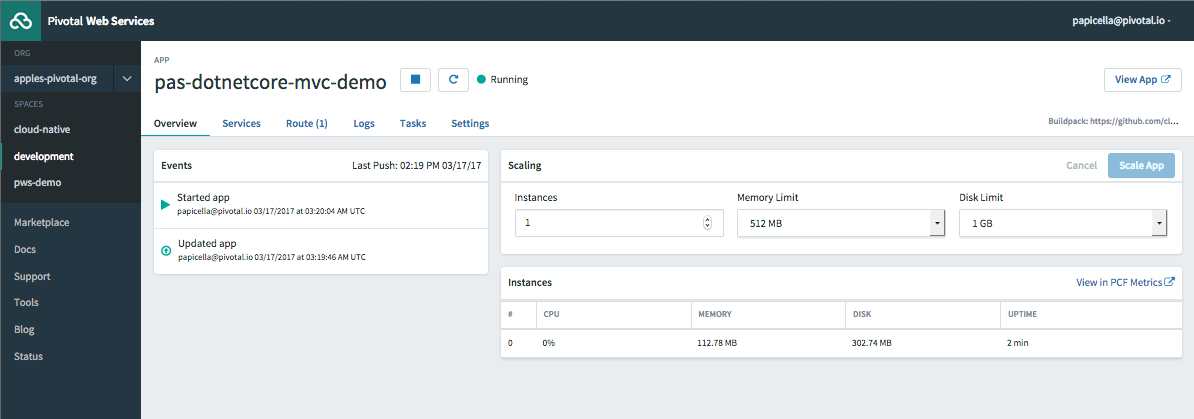
10. Finally invoke the application using the URL which can be determined by the output at the end of the PUSH above or using "cf apps"


More Information

https://docs.microsoft.com/en-us/aspnet/core/tutorials/your-first-mac-aspnet

Wednesday, 8 March 2017

ASP .NET Core (CLR) on Pivotal Cloud Foundry

There are two ways to run .NET applications on Pivotal Cloud Foundry. In short it's as follows

  1. Windows 2012 R2 Stack (Windows 2016 coming soon)
  2. Linux Stack - ASP.NET Core CLR only

In the example below I am going to show how you would push a sample ASP.NET Core application using the default Linux stack. I am using run.pivotal.io or better knows as PWS (Pivotal Web Services) instance which only supports a Linux stack. In your own PCF installation an operator may have provided Windows support in which case a "cf stacks" is one way to find out as shown below

$ cf stacks
Getting stacks in org pivot-papicella / space development as papicella@pivotal.io...
OK

name            description
cflinuxfs2      Cloud Foundry Linux-based filesystem

windows2012R2   Microsoft Windows / .Net 64 bit

Steps

1. Clone a demo as shown below

$ git clone https://github.com/bingosummer/aspnet-core-helloworld.git
Cloning into 'aspnet-core-helloworld'...
remote: Counting objects: 206, done.
remote: Total 206 (delta 0), reused 0 (delta 0), pack-reused 206
Receiving objects: 100% (206/206), 43.40 KiB | 0 bytes/s, done.
Resolving deltas: 100% (78/78), done.

2. Change to the right directory as shown below

$ cd aspnet-core-helloworld

3. Edit manifest.yml to use the BETA buildpack as follows. You can list out the build packs using "cf buildpacks"

---
applications:
- name: sample-aspnetcore-helloworld
  random-route: true
  memory: 512M
  buildpack: dotnet_core_buildpack_beta

4. Push as shown below

pasapicella@pas-macbook:~/apps/dotnet/aspnet-core-helloworld$ cf push
Using manifest file /Users/pasapicella/apps/dotnet/aspnet-core-helloworld/manifest.yml

Updating app sample-aspnetcore-helloworld in org apples-pivotal-org / space development as papicella@pivotal.io...
OK

Uploading sample-aspnetcore-helloworld...
Uploading app files from: /Users/pasapicella/pivotal/apps/dotnet/aspnet-core-helloworld
Uploading 21.9K, 15 files
Done uploading
OK

Stopping app sample-aspnetcore-helloworld in org apples-pivotal-org / space development as papicella@pivotal.io...
OK

Starting app sample-aspnetcore-helloworld in org apples-pivotal-org / space development as papicella@pivotal.io...
Downloading dotnet_core_buildpack_beta...
Downloaded dotnet_core_buildpack_beta
Creating container
Successfully created container
Downloading build artifacts cache...
Downloading app package...
Downloaded app package (21.5K)
Downloaded build artifacts cache (157.7M)

...

-----> Saving to buildpack cache
    Copied 0 files from /tmp/app/libunwind to /tmp/cache
    Copied 0 files from /tmp/app/.dotnet to /tmp/cache
    Copied 0 files from /tmp/app/.nuget to /tmp/cache
    OK
ASP.NET Core buildpack is done creating the droplet
Uploading droplet, build artifacts cache...
Uploading build artifacts cache...
Uploading droplet...
Uploaded build artifacts cache (157.7M)
Uploaded droplet (157.7M)
Uploading complete
Destroying container
Successfully destroyed container

0 of 1 instances running, 1 starting
1 of 1 instances running

App started


OK

App sample-aspnetcore-helloworld was started using this command `dotnet run --project src/dotnetstarter --server.urls http://0.0.0.0:${PORT}`

Showing health and status for app sample-aspnetcore-helloworld in org apples-pivotal-org / space development as papicella@pivotal.io...
OK

requested state: started
instances: 1/1
usage: 512M x 1 instances
urls: sample-aspnetcore-helloworld-gruffier-jackpot.cfapps.io
last uploaded: Wed Mar 8 10:46:44 UTC 2017
stack: cflinuxfs2
buildpack: dotnet_core_buildpack_beta

  state     since                    cpu     memory          disk           details
#0   running   2017-03-08 09:48:29 PM   22.4%   36.7M of 512M   556.8M of 1G


Verify the application using the URL given at the end of the push