When using Spring Cloud GCP you will need to authenticate at some point in order to use the GCP services. In this example below using a GCP Cloud SQL instance you really only need to do 3 things to access it externally from your Spring Boot application as follows.
1. Enable the Google Cloud SQL API which is detailed here
https://cloud.google.com/sql/docs/mysql/admin-api/
2. Ensure that your GCP SDK can login to your Google Cloud SQL. This command will take you to a web page asking which google account you want to use
$ gcloud auth application-default login
3. Finally some application properties in your Spring Boot application detailing the Google Cloud SQL instance name and database name as shown below.
spring.cloud.gcp.sql.instance-connection-name=fe-papicella:australia-southeast1:apples-db
spring.cloud.gcp.sql.database-name=employees
Now when you do that and your application starts up you will see a log message as follows below clearly warning you this this method of authentication can have implications at some point.
2019-02-07 09:10:26.700 WARN 2477 --- [ main] c.g.a.oauth2.DefaultCredentialsProvider : Your application has authenticated using end user credentials from Google Cloud SDK. We recommend that most server applications use service accounts instead. If your application continues to use end user credentials from Cloud SDK, you might receive a "quota exceeded" or "API not enabled" error. For more information about service accounts, see https://cloud.google.com/docs/authentication/.
Clearly that's something we have to resolve. To do that we simply can add another Spring Boot application property pointing to a service account JSON file for us to authenticate against to remove the warning.
spring.cloud.gcp.credentials.location=file:/Users/papicella/piv-projects/GCP/fe-papicella-8077fe1126b2.json
Note: You can also use an ENV variable as follows
export GOOGLE_APPLICATION_CREDENTIALS="[PATH]"
You can get a JSON key generated from the GCP console "IAM and Admin -> Service Accounts" page
For more information on authentication visit this link https://cloud.google.com/docs/authentication/getting-started
Search This Blog
Thursday, 7 February 2019
Tuesday, 22 January 2019
Testing out the new PFS (Pivotal Function Service) alpha release on minikube
I quickly installed PFS on minikube as per the instructions below so I could write my own function service. Below shows that function service and how I invoked using the PFS CLI and Postman
1. Install PFS using this url for minikube. Refer to these instructions to install PFS on minikube
https://docs.pivotal.io/pfs/install-on-minikube.html
2. Once installed verify PFS has been installed using some commands as follows
$ watch -n 1 kubectl get pod --all-namespaces
Output:
Various namespaces are created as shown below:
$ kubectl get namespaces
NAME STATUS AGE
default Active 19h
istio-system Active 18h
knative-build Active 18h
knative-eventing Active 18h
knative-serving Active 18h
kube-public Active 19h
kube-system Active 19h
Ensure PFS is installed as shown below:
$ pfs version
Version
pfs cli: 0.1.0 (e5de84d12d10a060aeb595310decbe7409467c99)
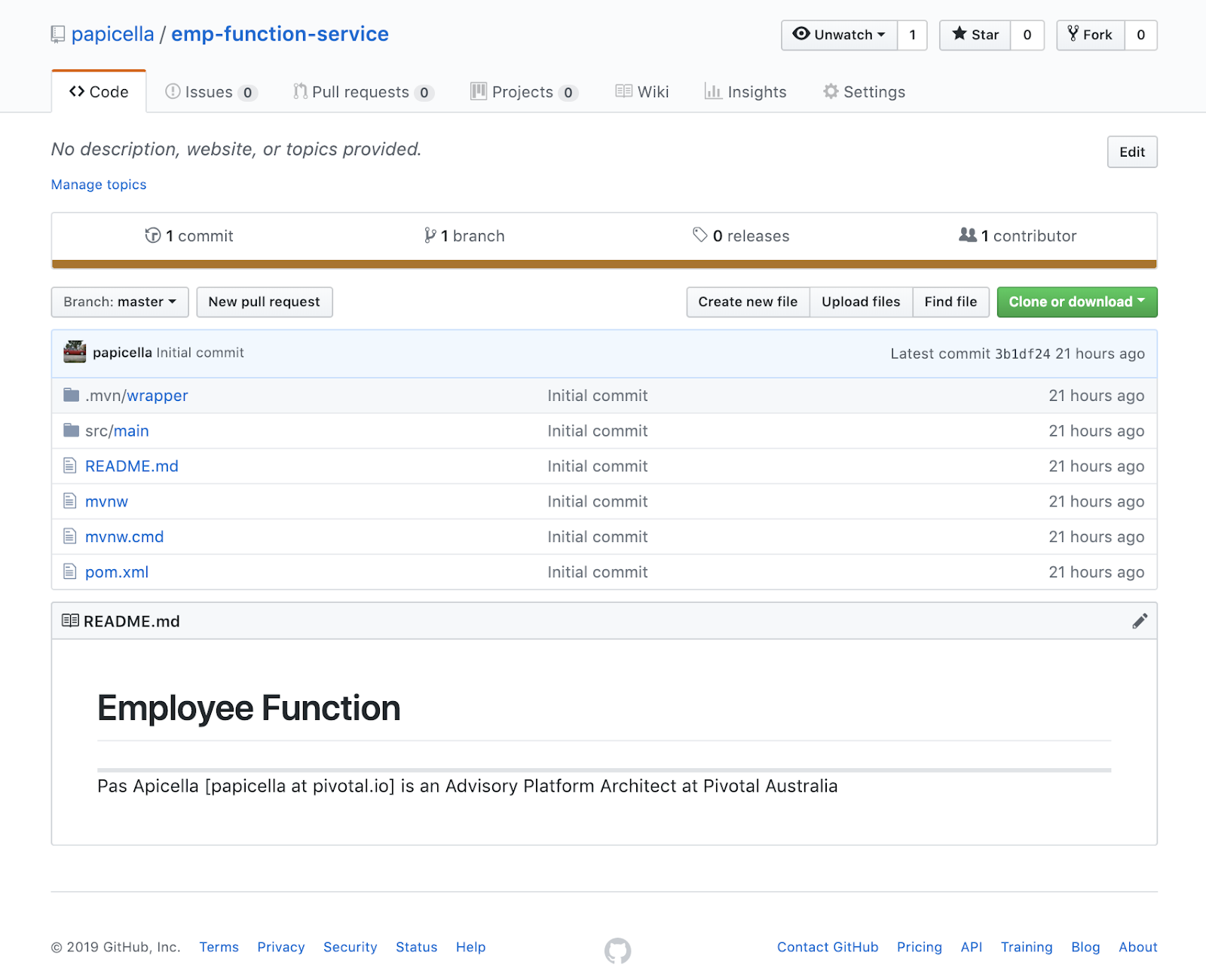
3. Now we are going to deploy this employee function which exists on GitHub as follows
https://github.com/papicella/emp-function-service
The Function code is as follows:
https://docs.pivotal.io/pfs/using-java-functions.html
5. Let's create a function called "emp-function" as shown below
$ pfs function create emp-function --git-repo https://github.com/papicella/emp-function-service --image $REGISTRY/$REGISTRY_USER/emp-function -w -v
Output: (Just showing the last few lines here)
papicella@papicella:~/pivotal/software/minikube$ pfs function create emp-function --git-repo https://github.com/papicella/emp-function-service --image $REGISTRY/$REGISTRY_USER/emp-function -w -v
Waiting for LatestCreatedRevisionName
Waiting on function creation: checkService failed to obtain service status for observedGeneration 1
LatestCreatedRevisionName available: emp-function-00001
...
default/emp-function-00001-gpn7p[build-step-build]: [INFO] BUILD SUCCESS
default/emp-function-00001-gpn7p[build-step-build]: [INFO] ------------------------------------------------------------------------
default/emp-function-00001-gpn7p[build-step-build]: [INFO] Total time: 12.407 s
default/emp-function-00001-gpn7p[build-step-build]: [INFO] Finished at: 2019-01-22T00:12:39Z
default/emp-function-00001-gpn7p[build-step-build]: [INFO] ------------------------------------------------------------------------
default/emp-function-00001-gpn7p[build-step-build]: Removing source code
default/emp-function-00001-gpn7p[build-step-build]:
default/emp-function-00001-gpn7p[build-step-build]: -----> riff Buildpack 0.1.0
default/emp-function-00001-gpn7p[build-step-build]: -----> riff Java Invoker 0.1.3: Contributing to launch
default/emp-function-00001-gpn7p[build-step-build]: Reusing cached download from buildpack
default/emp-function-00001-gpn7p[build-step-build]: Copying to /workspace/io.projectriff.riff/riff-invoker-java/java-function-invoker-0.1.3-exec.jar
default/emp-function-00001-gpn7p[build-step-build]: -----> Process types:
default/emp-function-00001-gpn7p[build-step-build]: web: java -jar /workspace/io.projectriff.riff/riff-invoker-java/java-function-invoker-0.1.3-exec.jar $JAVA_OPTS --function.uri='file:///workspace/app'
default/emp-function-00001-gpn7p[build-step-build]: function: java -jar /workspace/io.projectriff.riff/riff-invoker-java/java-function-invoker-0.1.3-exec.jar $JAVA_OPTS --function.uri='file:///workspace/app'
default/emp-function-00001-gpn7p[build-step-build]:
...
default/emp-function-00001-deployment-66fbd6bf4-bbqpq[user-container]: Hibernate: insert into employee (id, name) values (null, ?)
default/emp-function-00001-deployment-66fbd6bf4-bbqpq[user-container]: 2019-01-22 00:13:53.617 INFO 1 --- [ Thread-4] c.e.empfunctionservice.LoadDatabase : Preloading Employee(id=1, name=pas)
default/emp-function-00001-deployment-66fbd6bf4-bbqpq[user-container]: Hibernate: insert into employee (id, name) values (null, ?)
default/emp-function-00001-deployment-66fbd6bf4-bbqpq[user-container]: 2019-01-22 00:13:53.623 INFO 1 --- [ Thread-4] c.e.empfunctionservice.LoadDatabase : Preloading Employee(id=2, name=lucia)
default/emp-function-00001-deployment-66fbd6bf4-bbqpq[user-container]: Hibernate: insert into employee (id, name) values (null, ?)
default/emp-function-00001-deployment-66fbd6bf4-bbqpq[user-container]: 2019-01-22 00:13:53.628 INFO 1 --- [ Thread-4] c.e.empfunctionservice.LoadDatabase : Preloading Employee(id=3, name=lucas)
default/emp-function-00001-deployment-66fbd6bf4-bbqpq[user-container]: Hibernate: insert into employee (id, name) values (null, ?)
default/emp-function-00001-deployment-66fbd6bf4-bbqpq[user-container]: 2019-01-22 00:13:53.632 INFO 1 --- [ Thread-4] c.e.empfunctionservice.LoadDatabase : Preloading Employee(id=4, name=siena)
default/emp-function-00001-deployment-66fbd6bf4-bbqpq[user-container]: 2019-01-22 00:13:53.704 INFO 1 --- [ Thread-2] o.s.c.f.d.FunctionCreatorConfiguration : Located bean: findEmployee of type class com.example.empfunctionservice.EmpFunctionServiceApplication$$Lambda$791/373359604
pfs function create completed successfully
6. Let's invoke our function as shown below by returning each Employee record using it's ID.
$ pfs service invoke emp-function --text -- -w '\n' -d '1'
curl http://192.168.64.3:32380/ -H 'Host: emp-function.default.example.com' -H 'Content-Type: text/plain' -w '\n' -d 1
Employee(id=1, name=pas)
$ pfs service invoke emp-function --text -- -w '\n' -d '2'
curl http://192.168.64.3:32380/ -H 'Host: emp-function.default.example.com' -H 'Content-Type: text/plain' -w '\n' -d 2
Employee(id=2, name=lucia)
The "pfs service invoke" will show you what an external command will look like to invoke the function service. The IP address here is just the same IP address returned by "minikube ip" as shown below.
$ minikube ip
192.168.64.3
7. Let's view our services using "pfs" CLI
$ pfs service list
NAME STATUS
emp-function Running
hello Running
pfs service list completed successfully
8. Invoking from Postman, ensuring we issue a POST request and pass the correct headers as shown below
More Information
https://docs.pivotal.io/pfs/index.html
1. Install PFS using this url for minikube. Refer to these instructions to install PFS on minikube
https://docs.pivotal.io/pfs/install-on-minikube.html
2. Once installed verify PFS has been installed using some commands as follows
$ watch -n 1 kubectl get pod --all-namespaces
Output:
Various namespaces are created as shown below:
$ kubectl get namespaces
NAME STATUS AGE
default Active 19h
istio-system Active 18h
knative-build Active 18h
knative-eventing Active 18h
knative-serving Active 18h
kube-public Active 19h
kube-system Active 19h
Ensure PFS is installed as shown below:
$ pfs version
Version
pfs cli: 0.1.0 (e5de84d12d10a060aeb595310decbe7409467c99)
3. Now we are going to deploy this employee function which exists on GitHub as follows
https://github.com/papicella/emp-function-service
The Function code is as follows:
package com.example.empfunctionservice;
import lombok.extern.slf4j.Slf4j;
import org.springframework.boot.SpringApplication;
import org.springframework.boot.autoconfigure.SpringBootApplication;
import org.springframework.context.annotation.Bean;
import java.util.function.Function;
@Slf4j
@SpringBootApplication
public class EmpFunctionServiceApplication {
private static EmployeeService employeeService;
public EmpFunctionServiceApplication(EmployeeService employeeService) {
this.employeeService = employeeService;
}
@Bean
public Function<String, String> findEmployee() {
return id -> {
String response = employeeService.getEmployee(id);
return response;
};
}
public static void main(String[] args) {
SpringApplication.run(EmpFunctionServiceApplication.class, args);
}
}
4. We are going to deploy a Spring Boot Function as per the REPO above. More information on Java Functions for PFS can be found here
https://docs.pivotal.io/pfs/using-java-functions.html
5. Let's create a function called "emp-function" as shown below
$ pfs function create emp-function --git-repo https://github.com/papicella/emp-function-service --image $REGISTRY/$REGISTRY_USER/emp-function -w -v
Output: (Just showing the last few lines here)
papicella@papicella:~/pivotal/software/minikube$ pfs function create emp-function --git-repo https://github.com/papicella/emp-function-service --image $REGISTRY/$REGISTRY_USER/emp-function -w -v
Waiting for LatestCreatedRevisionName
Waiting on function creation: checkService failed to obtain service status for observedGeneration 1
LatestCreatedRevisionName available: emp-function-00001
...
default/emp-function-00001-gpn7p[build-step-build]: [INFO] BUILD SUCCESS
default/emp-function-00001-gpn7p[build-step-build]: [INFO] ------------------------------------------------------------------------
default/emp-function-00001-gpn7p[build-step-build]: [INFO] Total time: 12.407 s
default/emp-function-00001-gpn7p[build-step-build]: [INFO] Finished at: 2019-01-22T00:12:39Z
default/emp-function-00001-gpn7p[build-step-build]: [INFO] ------------------------------------------------------------------------
default/emp-function-00001-gpn7p[build-step-build]: Removing source code
default/emp-function-00001-gpn7p[build-step-build]:
default/emp-function-00001-gpn7p[build-step-build]: -----> riff Buildpack 0.1.0
default/emp-function-00001-gpn7p[build-step-build]: -----> riff Java Invoker 0.1.3: Contributing to launch
default/emp-function-00001-gpn7p[build-step-build]: Reusing cached download from buildpack
default/emp-function-00001-gpn7p[build-step-build]: Copying to /workspace/io.projectriff.riff/riff-invoker-java/java-function-invoker-0.1.3-exec.jar
default/emp-function-00001-gpn7p[build-step-build]: -----> Process types:
default/emp-function-00001-gpn7p[build-step-build]: web: java -jar /workspace/io.projectriff.riff/riff-invoker-java/java-function-invoker-0.1.3-exec.jar $JAVA_OPTS --function.uri='file:///workspace/app'
default/emp-function-00001-gpn7p[build-step-build]: function: java -jar /workspace/io.projectriff.riff/riff-invoker-java/java-function-invoker-0.1.3-exec.jar $JAVA_OPTS --function.uri='file:///workspace/app'
default/emp-function-00001-gpn7p[build-step-build]:
...
default/emp-function-00001-deployment-66fbd6bf4-bbqpq[user-container]: Hibernate: insert into employee (id, name) values (null, ?)
default/emp-function-00001-deployment-66fbd6bf4-bbqpq[user-container]: 2019-01-22 00:13:53.617 INFO 1 --- [ Thread-4] c.e.empfunctionservice.LoadDatabase : Preloading Employee(id=1, name=pas)
default/emp-function-00001-deployment-66fbd6bf4-bbqpq[user-container]: Hibernate: insert into employee (id, name) values (null, ?)
default/emp-function-00001-deployment-66fbd6bf4-bbqpq[user-container]: 2019-01-22 00:13:53.623 INFO 1 --- [ Thread-4] c.e.empfunctionservice.LoadDatabase : Preloading Employee(id=2, name=lucia)
default/emp-function-00001-deployment-66fbd6bf4-bbqpq[user-container]: Hibernate: insert into employee (id, name) values (null, ?)
default/emp-function-00001-deployment-66fbd6bf4-bbqpq[user-container]: 2019-01-22 00:13:53.628 INFO 1 --- [ Thread-4] c.e.empfunctionservice.LoadDatabase : Preloading Employee(id=3, name=lucas)
default/emp-function-00001-deployment-66fbd6bf4-bbqpq[user-container]: Hibernate: insert into employee (id, name) values (null, ?)
default/emp-function-00001-deployment-66fbd6bf4-bbqpq[user-container]: 2019-01-22 00:13:53.632 INFO 1 --- [ Thread-4] c.e.empfunctionservice.LoadDatabase : Preloading Employee(id=4, name=siena)
default/emp-function-00001-deployment-66fbd6bf4-bbqpq[user-container]: 2019-01-22 00:13:53.704 INFO 1 --- [ Thread-2] o.s.c.f.d.FunctionCreatorConfiguration : Located bean: findEmployee of type class com.example.empfunctionservice.EmpFunctionServiceApplication$$Lambda$791/373359604
pfs function create completed successfully
6. Let's invoke our function as shown below by returning each Employee record using it's ID.
$ pfs service invoke emp-function --text -- -w '\n' -d '1'
curl http://192.168.64.3:32380/ -H 'Host: emp-function.default.example.com' -H 'Content-Type: text/plain' -w '\n' -d 1
Employee(id=1, name=pas)
$ pfs service invoke emp-function --text -- -w '\n' -d '2'
curl http://192.168.64.3:32380/ -H 'Host: emp-function.default.example.com' -H 'Content-Type: text/plain' -w '\n' -d 2
Employee(id=2, name=lucia)
The "pfs service invoke" will show you what an external command will look like to invoke the function service. The IP address here is just the same IP address returned by "minikube ip" as shown below.
$ minikube ip
192.168.64.3
7. Let's view our services using "pfs" CLI
$ pfs service list
NAME STATUS
emp-function Running
hello Running
pfs service list completed successfully
8. Invoking from Postman, ensuring we issue a POST request and pass the correct headers as shown below
More Information
https://docs.pivotal.io/pfs/index.html
Friday, 4 January 2019
Creating a local kubectl config file for the proxy to your Kubernetes API server
On my Mac accessing the CONFIG file of kubectl exist in a painful location as follows
$HOME/.kube/config
When using the command "kubectl proxy" and invoking the UI requires you to browse to the CONFIG file which finder doesn't expose easily. One way around this is as follows
1. Save a copy of that config file in your current directory as follows
papicella@papicella:~/temp$ cat ~/.kube/config > kubeconfig
2. Invoke "kubectl proxy" to start a UI server to your K8's cluster
papicella@papicella:~/temp$ kubectl proxy
Starting to serve on 127.0.0.1:8001
3. Navigate to the UI using an URL as follows
http://localhost:8001/api/v1/namespaces/kube-system/services/https:kubernetes-dashboard:/proxy/#!/overview
4. At this point we can browse to the easily accessible TEMP directory to the file "kubeconfig" we created at step #1 and then click "Sing In" button
$HOME/.kube/config
When using the command "kubectl proxy" and invoking the UI requires you to browse to the CONFIG file which finder doesn't expose easily. One way around this is as follows
1. Save a copy of that config file in your current directory as follows
papicella@papicella:~/temp$ cat ~/.kube/config > kubeconfig
2. Invoke "kubectl proxy" to start a UI server to your K8's cluster
papicella@papicella:~/temp$ kubectl proxy
Starting to serve on 127.0.0.1:8001
3. Navigate to the UI using an URL as follows
http://localhost:8001/api/v1/namespaces/kube-system/services/https:kubernetes-dashboard:/proxy/#!/overview
4. At this point we can browse to the easily accessible TEMP directory to the file "kubeconfig" we created at step #1 and then click "Sing In" button
Thursday, 13 December 2018
PCF Heathwatch 1.4 just got a new UI
PCF Healthwatch is a service for monitoring and alerting on the current health, performance, and capacity of PCF to help operators understand the operational state of their PCF deployment
Finally got around to installing the new PCF Healthwatch 1.4 and the first thing which struck me was the UI main dashboard page. It's clear what I need to look at in seconds and the alerts on the right hand side also useful
Some screen shots below
papicella@papicella:~/pivotal/PCF/APJ/PEZ-HaaS/haas-99$ http http://healthwatch.run.haas-99.pez.pivotal.io/info
HTTP/1.1 200 OK
Content-Length: 45
Content-Type: application/json;charset=utf-8
Date: Thu, 13 Dec 2018 10:26:07 GMT
X-Vcap-Request-Id: ac309698-74a6-4e94-429a-bb5673c1c8f7
{
"message": "PCF Healthwatch available"
}
More Information
Pivotal Cloud Foundry Healthwatch
https://docs.pivotal.io/pcf-healthwatch/1-4/index.html
Finally got around to installing the new PCF Healthwatch 1.4 and the first thing which struck me was the UI main dashboard page. It's clear what I need to look at in seconds and the alerts on the right hand side also useful
Some screen shots below
papicella@papicella:~/pivotal/PCF/APJ/PEZ-HaaS/haas-99$ http http://healthwatch.run.haas-99.pez.pivotal.io/info
HTTP/1.1 200 OK
Content-Length: 45
Content-Type: application/json;charset=utf-8
Date: Thu, 13 Dec 2018 10:26:07 GMT
X-Vcap-Request-Id: ac309698-74a6-4e94-429a-bb5673c1c8f7
{
"message": "PCF Healthwatch available"
}
More Information
Pivotal Cloud Foundry Healthwatch
https://docs.pivotal.io/pcf-healthwatch/1-4/index.html
Monday, 10 December 2018
Disabling Spring Security if you don't require it
When using Spring Cloud Services Starter Config Client dependency for example Spring Security will also be included (Config servers will be protected by OAuth2). As a result this will also enable basic authentication to all our service endpoints on your application which may not be the desired result here if your just building a demo for example
Add the following to conditionally disable security in your Spring Boot main class
package com.example.employeeservice;
import org.springframework.boot.SpringApplication;
import org.springframework.boot.autoconfigure.SpringBootApplication;
import org.springframework.cloud.client.discovery.EnableDiscoveryClient;
import org.springframework.context.annotation.Configuration;
import org.springframework.security.config.annotation.web.builders.WebSecurity;
import org.springframework.security.config.annotation.web.configuration.WebSecurityConfigurerAdapter;
@SpringBootApplication
@EnableDiscoveryClient
public class EmployeeServiceApplication {
public static void main(String[] args) {
SpringApplication.run(EmployeeServiceApplication.class, args);
}
@Configuration
static class ApplicationSecurity extends WebSecurityConfigurerAdapter {
@Override
public void configure(WebSecurity web) throws Exception {
web
.ignoring()
.antMatchers("/**");
}
}
}
Saturday, 8 December 2018
The First Open, Multi-cloud Serverless Platform for the Enterprise Is Here
That’s Pivotal Function Service, and it’s available as an alpha release today. Read more about it here
https://content.pivotal.io/blog/the-first-open-multi-cloud-serverless-platform-for-the-enterprise-is-here-try-out-pivotal-function-service-today
Docs as follows
https://docs.pivotal.io/pfs/index.html
https://content.pivotal.io/blog/the-first-open-multi-cloud-serverless-platform-for-the-enterprise-is-here-try-out-pivotal-function-service-today
Docs as follows
https://docs.pivotal.io/pfs/index.html
Monday, 8 October 2018
Spring Cloud GCP using Spring Data JPA with MySQL 2nd Gen 5.7
Spring Cloud GCP adds integrations with
Spring JDBC
so you can run your MySQL or PostgreSQL databases in Google Cloud SQL using Spring JDBC, or other
libraries that depend on it like Spring Data JPA. Here is an example of how using Spring Data JPA with "Spring Cloud GCP"
1. First we need a MySQL 2nd Gen 5.7 database to exist in our GCP account which I have previously created as shown below
2. Create a new project using Spring Initializer or how ever you like to create it BUT ensure you have the following dependencies in place. Here is an example of what my pom.xml looks like. In short add the following maven dependencies as per the image below
pom.xml
3. Let's start by creating a basic Employee entity as shown below
Employee.java
4. Let's now add a Rest JpaRepository for our Entity
EmployeeRepository.java
EmployeeRest.java
6. Let's create an ApplicationRunner to show our list of Employees as the applications starts up
EmployeeRunner.java
data.sql
insert into employee (name) values ('pas');
insert into employee (name) values ('lucia');
insert into employee (name) values ('lucas');
insert into employee (name) values ('siena');
8. Finally our "application.yml" file will need to be able to be able to connect to our MySQL instance running in GCP as well as set some properties for JPA as shown below
spring:
jpa:
hibernate:
ddl-auto: create-drop
use-new-id-generator-mappings: false
properties:
hibernate:
dialect: org.hibernate.dialect.MariaDB53Dialect
cloud:
gcp:
sql:
instance-connection-name: fe-papicella:australia-southeast1:apples-mysql-1
database-name: employees
datasource:
initialization-mode: always
hikari:
maximum-pool-size: 1
A couple of things in here which are important.
- Set the Hibernate property "dialect: org.hibernate.dialect.MariaDB53Dialect" otherwise without this when hibernate creates tables for your entities you will run into this error as Cloud SQL database tables are created using the InnoDB storage engine.
ERROR 3161 (HY000): Storage engine MyISAM is disabled (Table creation is disallowed).
- For a demo I don't need multiple DB connections so I set the datasource "maximum-pool-size" to 1
- Notice how I set the "instance-connection-name" and "database-name" which is vital for Spring Cloud SQL to establish database connections
8. Now we need to make sure we have a database called "employees" as per our "application.yml" setting.
9. Now let's run our Spring Boot Application and verify this working showing some output from the logs
- Connection being established
2018-10-08 10:54:37.333 INFO 89922 --- [ main] c.google.cloud.sql.mysql.SocketFactory : Connecting to Cloud SQL instance [fe-papicella:australia-southeast1:apples-mysql-1] via ssl socket.
2018-10-08 10:54:37.335 INFO 89922 --- [ main] c.g.cloud.sql.core.SslSocketFactory : First Cloud SQL connection, generating RSA key pair.
2018-10-08 10:54:38.685 INFO 89922 --- [ main] c.g.cloud.sql.core.SslSocketFactory : Obtaining ephemeral certificate for Cloud SQL instance [fe-papicella:australia-southeast1:apples-mysql-1].
2018-10-08 10:54:40.132 INFO 89922 --- [ main] c.g.cloud.sql.core.SslSocketFactory : Connecting to Cloud SQL instance [fe-papicella:australia-southeast1:apples-mysql-1] on IP [35.197.180.223].
2018-10-08 10:54:40.748 INFO 89922 --- [ main] com.zaxxer.hikari.HikariDataSource : HikariPool-1 - Start completed.
- Showing the 4 Employee records
Employee(id=1, name=pas)
Employee(id=2, name=lucia)
Employee(id=3, name=lucas)
Employee(id=4, name=siena)
10. Finally let's make RESTful call as we defined above using HTTPie as follows
pasapicella@pas-macbook:~$ http :8080/emps-rest
HTTP/1.1 200
Content-Type: application/json;charset=UTF-8
Date: Mon, 08 Oct 2018 00:01:42 GMT
Transfer-Encoding: chunked
[
{
"id": 1,
"name": "pas"
},
{
"id": 2,
"name": "lucia"
},
{
"id": 3,
"name": "lucas"
},
{
"id": 4,
"name": "siena"
}
]
More Information
Spring Cloud GCP
https://cloud.spring.io/spring-cloud-gcp/
Spring Cloud GCP SQL demo (This one is using Spring JDBC)
https://github.com/spring-cloud/spring-cloud-gcp/tree/master/spring-cloud-gcp-samples/spring-cloud-gcp-sql-sample
1. First we need a MySQL 2nd Gen 5.7 database to exist in our GCP account which I have previously created as shown below
2. Create a new project using Spring Initializer or how ever you like to create it BUT ensure you have the following dependencies in place. Here is an example of what my pom.xml looks like. In short add the following maven dependencies as per the image below
pom.xml
<parent>
<groupId>org.springframework.boot</groupId>
<artifactId>spring-boot-starter-parent</artifactId>
<version>2.0.5.RELEASE</version>
<relativePath/> <!-- lookup parent from repository -->
</parent>
<properties>
<project.build.sourceEncoding>UTF-8</project.build.sourceEncoding>
<project.reporting.outputEncoding>UTF-8</project.reporting.outputEncoding>
<java.version>1.8</java.version>
<spring-cloud-gcp.version>1.0.0.RELEASE</spring-cloud-gcp.version>
<spring-cloud.version>Finchley.SR1</spring-cloud.version>
</properties>
<dependencies>
<dependency>
<groupId>org.springframework.boot</groupId>
<artifactId>spring-boot-starter-data-jpa</artifactId>
</dependency>
<dependency>
<groupId>org.springframework.boot</groupId>
<artifactId>spring-boot-starter-data-rest</artifactId>
</dependency>
<dependency>
<groupId>org.springframework.boot</groupId>
<artifactId>spring-boot-starter-thymeleaf</artifactId>
</dependency>
<dependency>
<groupId>org.springframework.boot</groupId>
<artifactId>spring-boot-starter-web</artifactId>
</dependency>
<dependency>
<groupId>org.springframework.cloud</groupId>
<artifactId>spring-cloud-gcp-starter</artifactId>
</dependency>
<dependency>
<groupId>org.springframework.cloud</groupId>
<artifactId>spring-cloud-gcp-starter-sql-mysql</artifactId>
</dependency>
<dependency>
<groupId>mysql</groupId>
<artifactId>mysql-connector-java</artifactId>
<scope>runtime</scope>
</dependency>
<dependency>
<groupId>org.projectlombok</groupId>
<artifactId>lombok</artifactId>
<optional>true</optional>
</dependency>
</dependencies>
...
<dependencyManagement>
<dependencies>
<dependency>
<groupId>org.springframework.cloud</groupId>
<artifactId>spring-cloud-dependencies</artifactId>
<version>${spring-cloud.version}</version>
<type>pom</type>
<scope>import</scope>
</dependency>
<dependency>
<groupId>org.springframework.cloud</groupId>
<artifactId>spring-cloud-gcp-dependencies</artifactId>
<version>${spring-cloud-gcp.version}</version>
<type>pom</type>
<scope>import</scope>
</dependency>
</dependencies>
</dependencyManagement>
3. Let's start by creating a basic Employee entity as shown below
Employee.java
package pas.apj.pa.sb.gcp;
import lombok.AllArgsConstructor;
import lombok.Data;
import lombok.NoArgsConstructor;
import javax.persistence.*;
@Entity
@NoArgsConstructor
@AllArgsConstructor
@Data
@Table (name = "employee")
public class Employee {
@Id
@GeneratedValue (strategy = GenerationType.AUTO)
private Long id;
private String name;
}
4. Let's now add a Rest JpaRepository for our Entity
EmployeeRepository.java
package pas.apj.pa.sb.gcp;
import org.springframework.data.jpa.repository.JpaRepository;
public interface EmployeeRepository extends JpaRepository <Employee, Long> {
}
5. Let's create a basic RestController to show all our Employee entitiesEmployeeRest.java
package pas.apj.pa.sb.gcp;
import org.springframework.web.bind.annotation.RequestMapping;
import org.springframework.web.bind.annotation.RestController;
import java.util.List;
@RestController
public class EmployeeRest {
private EmployeeRepository employeeRepository;
public EmployeeRest(EmployeeRepository employeeRepository) {
this.employeeRepository = employeeRepository;
}
@RequestMapping("/emps-rest")
public List<Employee> getAllemps()
{
return employeeRepository.findAll();
}
}
6. Let's create an ApplicationRunner to show our list of Employees as the applications starts up
EmployeeRunner.java
package pas.apj.pa.sb.gcp;
import org.springframework.boot.ApplicationArguments;
import org.springframework.boot.ApplicationRunner;
import org.springframework.stereotype.Component;
@Component
public class EmployeeRunner implements ApplicationRunner {
private EmployeeRepository employeeRepository;
public EmployeeRunner(EmployeeRepository employeeRepository) {
this.employeeRepository = employeeRepository;
}
@Override
public void run(ApplicationArguments args) throws Exception {
employeeRepository.findAll().forEach(System.out::println);
}
}
7. Add a data.sql file to create some records in the database at application startupdata.sql
insert into employee (name) values ('pas');
insert into employee (name) values ('lucia');
insert into employee (name) values ('lucas');
insert into employee (name) values ('siena');
8. Finally our "application.yml" file will need to be able to be able to connect to our MySQL instance running in GCP as well as set some properties for JPA as shown below
spring:
jpa:
hibernate:
ddl-auto: create-drop
use-new-id-generator-mappings: false
properties:
hibernate:
dialect: org.hibernate.dialect.MariaDB53Dialect
cloud:
gcp:
sql:
instance-connection-name: fe-papicella:australia-southeast1:apples-mysql-1
database-name: employees
datasource:
initialization-mode: always
hikari:
maximum-pool-size: 1
A couple of things in here which are important.
- Set the Hibernate property "dialect: org.hibernate.dialect.MariaDB53Dialect" otherwise without this when hibernate creates tables for your entities you will run into this error as Cloud SQL database tables are created using the InnoDB storage engine.
ERROR 3161 (HY000): Storage engine MyISAM is disabled (Table creation is disallowed).
- For a demo I don't need multiple DB connections so I set the datasource "maximum-pool-size" to 1
- Notice how I set the "instance-connection-name" and "database-name" which is vital for Spring Cloud SQL to establish database connections
8. Now we need to make sure we have a database called "employees" as per our "application.yml" setting.
9. Now let's run our Spring Boot Application and verify this working showing some output from the logs
- Connection being established
2018-10-08 10:54:37.333 INFO 89922 --- [ main] c.google.cloud.sql.mysql.SocketFactory : Connecting to Cloud SQL instance [fe-papicella:australia-southeast1:apples-mysql-1] via ssl socket.
2018-10-08 10:54:37.335 INFO 89922 --- [ main] c.g.cloud.sql.core.SslSocketFactory : First Cloud SQL connection, generating RSA key pair.
2018-10-08 10:54:38.685 INFO 89922 --- [ main] c.g.cloud.sql.core.SslSocketFactory : Obtaining ephemeral certificate for Cloud SQL instance [fe-papicella:australia-southeast1:apples-mysql-1].
2018-10-08 10:54:40.132 INFO 89922 --- [ main] c.g.cloud.sql.core.SslSocketFactory : Connecting to Cloud SQL instance [fe-papicella:australia-southeast1:apples-mysql-1] on IP [35.197.180.223].
2018-10-08 10:54:40.748 INFO 89922 --- [ main] com.zaxxer.hikari.HikariDataSource : HikariPool-1 - Start completed.
- Showing the 4 Employee records
Employee(id=1, name=pas)
Employee(id=2, name=lucia)
Employee(id=3, name=lucas)
Employee(id=4, name=siena)
10. Finally let's make RESTful call as we defined above using HTTPie as follows
pasapicella@pas-macbook:~$ http :8080/emps-rest
HTTP/1.1 200
Content-Type: application/json;charset=UTF-8
Date: Mon, 08 Oct 2018 00:01:42 GMT
Transfer-Encoding: chunked
[
{
"id": 1,
"name": "pas"
},
{
"id": 2,
"name": "lucia"
},
{
"id": 3,
"name": "lucas"
},
{
"id": 4,
"name": "siena"
}
]
More Information
Spring Cloud GCP
https://cloud.spring.io/spring-cloud-gcp/
Spring Cloud GCP SQL demo (This one is using Spring JDBC)
https://github.com/spring-cloud/spring-cloud-gcp/tree/master/spring-cloud-gcp-samples/spring-cloud-gcp-sql-sample
Monday, 17 September 2018
PKS - What happens when we create a new namespace with NSX-T
I previously blogged about the integration between PKS and NSX-T on this post
http://theblasfrompas.blogspot.com/2018/09/pivotal-container-service-pks-with-nsx.html
On this post lets show the impact of what occurs within NSX-T when we create a new Namespace in our K8s cluster.
1. List the K8s clusters with have available
pasapicella@pas-macbook:~/pivotal/PCF/APJ/PEZ-HaaS/haas-148$ pks clusters
Name Plan Name UUID Status Action
apples small d9f258e3-247c-4b4c-9055-629871be896c succeeded UPDATE
2. Fetch the cluster config for our cluster into our local Kubectl config
pasapicella@pas-macbook:~/pivotal/PCF/APJ/PEZ-HaaS/haas-148$ pks get-credentials apples
Fetching credentials for cluster apples.
Context set for cluster apples.
You can now switch between clusters by using:
$kubectl config use-context
3. Create a new Namespace for the K8s cluster as shown below
pasapicella@pas-macbook:~/pivotal/PCF/APJ/PEZ-HaaS/haas-148$ kubectl create namespace production
namespace "production" created
4. View the Namespaces in the K8s cluster
pasapicella@pas-macbook:~/pivotal/PCF/APJ/PEZ-HaaS/haas-148$ kubectl get ns
NAME STATUS AGE
default Active 12d
kube-public Active 12d
kube-system Active 12d
production Active 9s
Using NSX-T manager the first thing you will see is a new Tier 1 router created for the K8s namespace "production"
Lets view it's configuration via the "Overview" screen
Finally lets see the default "Logical Routes" as shown below
When we push workloads to the "Production" namespace it's this configuration which was dynamically created which we will get out of the box allowing us to expose a "LoadBalancer" service as required across the Pods deployed within the Namspace
http://theblasfrompas.blogspot.com/2018/09/pivotal-container-service-pks-with-nsx.html
On this post lets show the impact of what occurs within NSX-T when we create a new Namespace in our K8s cluster.
1. List the K8s clusters with have available
pasapicella@pas-macbook:~/pivotal/PCF/APJ/PEZ-HaaS/haas-148$ pks clusters
Name Plan Name UUID Status Action
apples small d9f258e3-247c-4b4c-9055-629871be896c succeeded UPDATE
pasapicella@pas-macbook:~/pivotal/PCF/APJ/PEZ-HaaS/haas-148$ pks get-credentials apples
Fetching credentials for cluster apples.
Context set for cluster apples.
You can now switch between clusters by using:
$kubectl config use-context
3. Create a new Namespace for the K8s cluster as shown below
pasapicella@pas-macbook:~/pivotal/PCF/APJ/PEZ-HaaS/haas-148$ kubectl create namespace production
namespace "production" created
4. View the Namespaces in the K8s cluster
pasapicella@pas-macbook:~/pivotal/PCF/APJ/PEZ-HaaS/haas-148$ kubectl get ns
NAME STATUS AGE
default Active 12d
kube-public Active 12d
kube-system Active 12d
production Active 9s
Using NSX-T manager the first thing you will see is a new Tier 1 router created for the K8s namespace "production"
Lets view it's configuration via the "Overview" screen
Finally lets see the default "Logical Routes" as shown below
When we push workloads to the "Production" namespace it's this configuration which was dynamically created which we will get out of the box allowing us to expose a "LoadBalancer" service as required across the Pods deployed within the Namspace
Wednesday, 5 September 2018
Pivotal Container Service (PKS) with NSX-T on vSphere
It taken some time but now I officially was able to test PKS with NSX-T rather then using Flannel.
While there is a bit of initial setup to install NSX-T and PKS and then ensure PKS networking is NSX-T, the ease of rolling out multiple Kubernetes clusters with unique networking is greatly simplified by NSX-T. Here I am going to show what happens after pushing a workload to my PKS K8s cluster
First Before we can do anything we need the following...
Pre Steps
1. Ensure you have NSX-T setup and a dashboard UI as follows
2. Ensure you have PKS installed in this example I have it installed on vSphere which at the time of this blog is the only supported / applicable version we can use for NSX-T
PKS tile would need to ensure it's setup to use NSX-T which is done on this page of the tile configuration
3. You can see from the NSX-T manager UI we have a Load Balancers setup as shown below. Navigate to "Load Balancing -> Load Balancers"
And this Load Balancer is backed by few "Virtual Servers", one for http (port 80) and the other for https (port 443), which can be seen when you select the Virtual Servers link
From here we have logical switches created for each of the Kubernetes namespaces. We see two for our load balancer, and the other 3 are for the 3 K8s namespaces which are (default, kube-public, kube-system)
Here is how we verify the namespaces we have in our K8s cluster
pasapicella@pas-macbook:~/pivotal $ kubectl get ns
NAME STATUS AGE
default Active 5h
kube-public Active 5h
kube-system Active 5h
All of the logical switches are connected to the T0 Logical Switch by a set of T1 Logical Routers
For these to be accessible, they are linked to the T0 Logical Router via a set of router ports
Now lets push a basic K8s workload and see what NSX-T and PKS give us out of the box...
Steps
Lets create our K8s cluster using the PKS CLI. You will need a PKS CLI user which can be created following this doc
https://docs.pivotal.io/runtimes/pks/1-1/manage-users.html
1. Login using the PKS CLI as follows
$ pks login -k -a api.pks.haas-148.pez.pivotal.io -u pas -p ****
2. Create a cluster as shown below
$ pks create-cluster apples --external-hostname apples.haas-148.pez.pivotal.io --plan small
Name: apples
Plan Name: small
UUID: d9f258e3-247c-4b4c-9055-629871be896c
Last Action: CREATE
Last Action State: in progress
Last Action Description: Creating cluster
Kubernetes Master Host: apples.haas-148.pez.pivotal.io
Kubernetes Master Port: 8443
Worker Instances: 3
Kubernetes Master IP(s): In Progress
3. Wait for the cluster to have created as follows
$ pks cluster apples
Name: apples
Plan Name: small
UUID: d9f258e3-247c-4b4c-9055-629871be896c
Last Action: CREATE
Last Action State: succeeded
Last Action Description: Instance provisioning completed
Kubernetes Master Host: apples.haas-148.pez.pivotal.io
Kubernetes Master Port: 8443
Worker Instances: 3
Kubernetes Master IP(s): 10.1.1.10
The PKS CLI is basically telling BOSH to go ahead an based on the small plan create me a fully functional/working K8's cluster from VM's to all the processes that go along with it and when it's up keep it up and running for me in the event of failure.
His an example of the one of the WORKER VM's of the cluster shown in vSphere Web Client
4. Using the following YAML file as follows lets push that workload to our K8s cluster
apiVersion: v1
kind: Service
metadata:
labels:
app: fortune-service
deployment: pks-workshop
name: fortune-service
spec:
ports:
- port: 80
name: ui
- port: 9080
name: backend
- port: 6379
name: redis
type: LoadBalancer
selector:
app: fortune
---
apiVersion: v1
kind: Pod
metadata:
labels:
app: fortune
deployment: pks-workshop
name: fortune
spec:
containers:
- image: azwickey/fortune-ui:latest
name: fortune-ui
ports:
- containerPort: 80
protocol: TCP
- image: azwickey/fortune-backend-jee:latest
name: fortune-backend
ports:
- containerPort: 9080
protocol: TCP
- image: redis
name: redis
ports:
- containerPort: 6379
protocol: TCP
5. Push the workload as follows once the above YAML is saved to a file
$ kubectl create -f fortune-teller.yml
service "fortune-service" created
pod "fortune" created
6. Verify the PODS are running as follows
$ kubectl get all
NAME READY STATUS RESTARTS AGE
po/fortune 3/3 Running 0 35s
NAME TYPE CLUSTER-IP EXTERNAL-IP PORT(S) AGE
svc/fortune-service LoadBalancer 10.100.200.232 10.195.3.134 80:30591/TCP,9080:32487/TCP,6379:32360/TCP 36s
svc/kubernetes ClusterIP 10.100.200.1 443/TCP 5h
Great so now lets head back to our NSX-T manager UI and see what has been created. From the above output you can see a LB service is created and external IP address assigned
7. First thing you will notice is in "Virtual Servers" we have some new entries for each of our containers as shown below
and ...
Finally the LB we previously had in place shows our "Virtual Servers" added to it's config and routable
More Information
Pivotal Container Service
https://docs.pivotal.io/runtimes/pks/1-1/
VMware NSX-T
https://docs.vmware.com/en/VMware-NSX-T/index.html
While there is a bit of initial setup to install NSX-T and PKS and then ensure PKS networking is NSX-T, the ease of rolling out multiple Kubernetes clusters with unique networking is greatly simplified by NSX-T. Here I am going to show what happens after pushing a workload to my PKS K8s cluster
First Before we can do anything we need the following...
Pre Steps
1. Ensure you have NSX-T setup and a dashboard UI as follows
2. Ensure you have PKS installed in this example I have it installed on vSphere which at the time of this blog is the only supported / applicable version we can use for NSX-T
PKS tile would need to ensure it's setup to use NSX-T which is done on this page of the tile configuration
3. You can see from the NSX-T manager UI we have a Load Balancers setup as shown below. Navigate to "Load Balancing -> Load Balancers"
And this Load Balancer is backed by few "Virtual Servers", one for http (port 80) and the other for https (port 443), which can be seen when you select the Virtual Servers link
From here we have logical switches created for each of the Kubernetes namespaces. We see two for our load balancer, and the other 3 are for the 3 K8s namespaces which are (default, kube-public, kube-system)
Here is how we verify the namespaces we have in our K8s cluster
pasapicella@pas-macbook:~/pivotal $ kubectl get ns
NAME STATUS AGE
default Active 5h
kube-public Active 5h
kube-system Active 5h
All of the logical switches are connected to the T0 Logical Switch by a set of T1 Logical Routers
For these to be accessible, they are linked to the T0 Logical Router via a set of router ports
Now lets push a basic K8s workload and see what NSX-T and PKS give us out of the box...
Steps
Lets create our K8s cluster using the PKS CLI. You will need a PKS CLI user which can be created following this doc
https://docs.pivotal.io/runtimes/pks/1-1/manage-users.html
1. Login using the PKS CLI as follows
$ pks login -k -a api.pks.haas-148.pez.pivotal.io -u pas -p ****
2. Create a cluster as shown below
$ pks create-cluster apples --external-hostname apples.haas-148.pez.pivotal.io --plan small
Name: apples
Plan Name: small
UUID: d9f258e3-247c-4b4c-9055-629871be896c
Last Action: CREATE
Last Action State: in progress
Last Action Description: Creating cluster
Kubernetes Master Host: apples.haas-148.pez.pivotal.io
Kubernetes Master Port: 8443
Worker Instances: 3
Kubernetes Master IP(s): In Progress
3. Wait for the cluster to have created as follows
$ pks cluster apples
Name: apples
Plan Name: small
UUID: d9f258e3-247c-4b4c-9055-629871be896c
Last Action: CREATE
Last Action State: succeeded
Last Action Description: Instance provisioning completed
Kubernetes Master Host: apples.haas-148.pez.pivotal.io
Kubernetes Master Port: 8443
Worker Instances: 3
Kubernetes Master IP(s): 10.1.1.10
The PKS CLI is basically telling BOSH to go ahead an based on the small plan create me a fully functional/working K8's cluster from VM's to all the processes that go along with it and when it's up keep it up and running for me in the event of failure.
His an example of the one of the WORKER VM's of the cluster shown in vSphere Web Client
4. Using the following YAML file as follows lets push that workload to our K8s cluster
apiVersion: v1
kind: Service
metadata:
labels:
app: fortune-service
deployment: pks-workshop
name: fortune-service
spec:
ports:
- port: 80
name: ui
- port: 9080
name: backend
- port: 6379
name: redis
type: LoadBalancer
selector:
app: fortune
---
apiVersion: v1
kind: Pod
metadata:
labels:
app: fortune
deployment: pks-workshop
name: fortune
spec:
containers:
- image: azwickey/fortune-ui:latest
name: fortune-ui
ports:
- containerPort: 80
protocol: TCP
- image: azwickey/fortune-backend-jee:latest
name: fortune-backend
ports:
- containerPort: 9080
protocol: TCP
- image: redis
name: redis
ports:
- containerPort: 6379
protocol: TCP
5. Push the workload as follows once the above YAML is saved to a file
$ kubectl create -f fortune-teller.yml
service "fortune-service" created
pod "fortune" created
6. Verify the PODS are running as follows
$ kubectl get all
NAME READY STATUS RESTARTS AGE
po/fortune 3/3 Running 0 35s
NAME TYPE CLUSTER-IP EXTERNAL-IP PORT(S) AGE
svc/fortune-service LoadBalancer 10.100.200.232 10.195.3.134 80:30591/TCP,9080:32487/TCP,6379:32360/TCP 36s
svc/kubernetes ClusterIP 10.100.200.1
Great so now lets head back to our NSX-T manager UI and see what has been created. From the above output you can see a LB service is created and external IP address assigned
7. First thing you will notice is in "Virtual Servers" we have some new entries for each of our containers as shown below
and ...
Finally the LB we previously had in place shows our "Virtual Servers" added to it's config and routable
More Information
Pivotal Container Service
https://docs.pivotal.io/runtimes/pks/1-1/
VMware NSX-T
https://docs.vmware.com/en/VMware-NSX-T/index.html
Monday, 20 August 2018
PCF Platform Automation with Concourse (PCF Pipelines)
Previously I blogged about using "Bubble" or bosh-bootloader as per the post below.
http://theblasfrompas.blogspot.com/2018/08/bosh-bootloader-or-bubble-as-pronounced.html
... and from there setting up Concourse
http://theblasfrompas.blogspot.com/2018/08/deploying-concourse-using-my-bubble.html
.. of course this was created so I can now use the PCF Pipelines to deploy Pivotal Cloud Foundry's Pivotal Application Service (PAS). At a high level this is how to achieve this with some screen shots on the end result
Steps
1. To get started you would use this link as follows. In my example I was deploying PCF to AWS
https://github.com/pivotal-cf/pcf-pipelines/tree/master/install-pcf
AWS Install Pipeline
https://github.com/pivotal-cf/pcf-pipelines/tree/master/install-pcf/aws
2. Create a versioned bucket for holding terraform state. on AWS that will look as follows
3. Unless you ensure AWS pre-reqs are meet you won't be able to install PCF so this link highlights all that you will need for installing PCF on AWS such as key pairs, limits, etc
https://docs.pivotal.io/pivotalcf/2-1/customizing/aws.html
4. Create a public DNS zone, get its zone ID we will need that when we setup the pipeline shortly. I also created a self signed public certificate used for my DNS as part of the setup which is required as well.
5. At this point we can download the PCF Pipelines from network.pivotal.io or you can use the link as follows
https://network.pivotal.io/products/pcf-automation/
6. Once you have unzipped the file you would then change to the directory for the write IaaS in my case "aws"
$ cd pcf-pipelines/install-pcf/aws
7. Change all of the CHANGEME values in params.yml with real values for your AWS env. This file is documented so you are clear with what you need to add and where. Most of the values are defaults of course.
8. Login to concourse using the "fly" command line
$ fly --target pcfconcourse login --concourse-url https://bosh-director-aws-concourse-lb-f827ef220d02270c.elb.ap-southeast-2.amazonaws.com -k
9. Add pipeline
$ fly -t pcfconcourse set-pipeline -p deploy-pcf -c pipeline.yml -l params.yml
10. Unpause pipeline
$ fly -t pcfconcourse unpause-pipeline -p deploy-pcf
pasapicella@pas-macbook:~/pivotal/aws/pcf-pipelines/pcf-pipelines/install-pcf/aws$ fly -t pcfconcourse pipelines
name paused public
deploy-pcf no no
11. The pipeline on concourse will look as follows
12. Now to execute the pipeline you have to manually run 2 tasks
At this point the pipeline will kick of automatically. If you need to run-run due to an issue you can manually kick off the task after you fix what you need to fix. The “wipe-env” task will take everything for PAS down and terraform removes all IaaS config as well.
While running each task current state is shown as per the image below
If successful your AWS account will the PCF VM's created for example
Verify that PCF installed is best done using Pivotal Operations Manager as shown below
More Information
https://network.pivotal.io/products/pcf-automation/
http://theblasfrompas.blogspot.com/2018/08/bosh-bootloader-or-bubble-as-pronounced.html
... and from there setting up Concourse
http://theblasfrompas.blogspot.com/2018/08/deploying-concourse-using-my-bubble.html
.. of course this was created so I can now use the PCF Pipelines to deploy Pivotal Cloud Foundry's Pivotal Application Service (PAS). At a high level this is how to achieve this with some screen shots on the end result
Steps
1. To get started you would use this link as follows. In my example I was deploying PCF to AWS
https://github.com/pivotal-cf/pcf-pipelines/tree/master/install-pcf
AWS Install Pipeline
https://github.com/pivotal-cf/pcf-pipelines/tree/master/install-pcf/aws
2. Create a versioned bucket for holding terraform state. on AWS that will look as follows
3. Unless you ensure AWS pre-reqs are meet you won't be able to install PCF so this link highlights all that you will need for installing PCF on AWS such as key pairs, limits, etc
https://docs.pivotal.io/pivotalcf/2-1/customizing/aws.html
4. Create a public DNS zone, get its zone ID we will need that when we setup the pipeline shortly. I also created a self signed public certificate used for my DNS as part of the setup which is required as well.
5. At this point we can download the PCF Pipelines from network.pivotal.io or you can use the link as follows
https://network.pivotal.io/products/pcf-automation/
6. Once you have unzipped the file you would then change to the directory for the write IaaS in my case "aws"
$ cd pcf-pipelines/install-pcf/aws
7. Change all of the CHANGEME values in params.yml with real values for your AWS env. This file is documented so you are clear with what you need to add and where. Most of the values are defaults of course.
8. Login to concourse using the "fly" command line
$ fly --target pcfconcourse login --concourse-url https://bosh-director-aws-concourse-lb-f827ef220d02270c.elb.ap-southeast-2.amazonaws.com -k
9. Add pipeline
$ fly -t pcfconcourse set-pipeline -p deploy-pcf -c pipeline.yml -l params.yml
10. Unpause pipeline
$ fly -t pcfconcourse unpause-pipeline -p deploy-pcf
pasapicella@pas-macbook:~/pivotal/aws/pcf-pipelines/pcf-pipelines/install-pcf/aws$ fly -t pcfconcourse pipelines
name paused public
deploy-pcf no no
11. The pipeline on concourse will look as follows
12. Now to execute the pipeline you have to manually run 2 tasks
- Run bootstrap-terraform-state job manually
- Run create-infrastructure manually
While running each task current state is shown as per the image below
If successful your AWS account will the PCF VM's created for example
Verify that PCF installed is best done using Pivotal Operations Manager as shown below
More Information
https://network.pivotal.io/products/pcf-automation/
Saturday, 18 August 2018
Deploying concourse using my "Bubble" created Bosh director
Previously I blogged about using "Bubble" or bosh-bootloader as per the post below.
http://theblasfrompas.blogspot.com/2018/08/bosh-bootloader-or-bubble-as-pronounced.html
Now with bosh director deployed it's time to deploy concourse itself. The process is very straight forward as per the steps below
1. First let's clone the bosh concourse deployment using the GitHub project as follows
http://theblasfrompas.blogspot.com/2018/08/bosh-bootloader-or-bubble-as-pronounced.html
Now with bosh director deployed it's time to deploy concourse itself. The process is very straight forward as per the steps below
1. First let's clone the bosh concourse deployment using the GitHub project as follows
2. Target bosh director and login, must set ENV variables to connect to AWS bosh correctly using "eval" as we did in the previous post. This will set all the ENV variables we need
$ eval "$(bbl print-env -s state)"
$ bosh alias-env aws-env
$ bosh -e aws-env log-in
3. At this point we need to set the external URL which is essentially the load balancer we created when we deployed Bosh Director in the previous post. To get that value run a command as follows where we deployed bosh director from as shown below
pasapicella@pas-macbook:~/pivotal/aws/pcf-pipelines$ bbl lbs -s state
Concourse LB: bosh-director-aws-concourse-lb [bosh-director-aws-concourse-lb-f827ef220d02270c.elb.ap-southeast-2.amazonaws.com]
4. Now lets set that ENV variable as shown below
pasapicella@pas-macbook:~/pivotal/aws/pcf-pipelines$ export external_url=https://bosh-director-aws-concourse-lb-f827ef220d02270c.elb.ap-southeast-2.amazonaws.com
5. Now from the cloned bosh concourse directory change to the directory "concourse-bosh-deployment/cluster" as shown below
pasapicella@pas-macbook:~/pivotal/aws/pcf-pipelines$ cd concourse-bosh-deployment/cluster
6. Upload stemcell as follows
$ bosh upload-stemcell light-bosh-stemcell-3363.69-aws-xen-hvm-ubuntu-trusty-go_agent.tgz
Verify:
pasapicella@pas-macbook:~/pivotal/aws/pcf-pipelines$ bosh -e aws-bosh stemcells
Using environment 'https://10.0.0.6:25555' as client 'admin'
Name Version OS CPI CID
bosh-aws-xen-hvm-ubuntu-trusty-go_agent 3363.69 ubuntu-trusty - ami-0812e8018333d59a6
(*) Currently deployed
1 stemcells
Succeeded
7. Now lets deploy concourse as shown below with a command as follows. Make sure you set a password as per "atc_basic_auth.password"
$ bosh deploy -d concourse concourse.yml -l ../versions.yml --vars-store cluster-creds.yml -o operations/basic-auth.yml -o operations/privileged-http.yml -o operations/privileged-https.yml -o operations/tls.yml -o operations/tls-vars.yml -o operations/web-network-extension.yml --var network_name=default --var external_url=$external_url --var web_vm_type=default --var db_vm_type=default --var db_persistent_disk_type=10GB --var worker_vm_type=default --var deployment_name=concourse --var web_network_name=private --var web_network_vm_extension=lb --var atc_basic_auth.username=admin --var atc_basic_auth.password=..... --var worker_ephemeral_disk=500GB_ephemeral_disk -o operations/worker-ephemeral-disk.yml
8. Once deployed verify the deployment and VM's created as follows
pasapicella@pas-macbook:~/pivotal/aws/pcf-pipelines$ bosh -e aws-env deployments
Using environment 'https://10.0.0.6:25555' as client 'admin'
Name Release(s) Stemcell(s) Team(s)
concourse concourse/3.13.0 bosh-aws-xen-hvm-ubuntu-trusty-go_agent/3363.69 -
garden-runc/1.13.1
postgres/28
1 deployments
Succeeded
pasapicella@pas-macbook:~/pivotal/aws/pcf-pipelines$ bosh -e aws-env vms
Using environment 'https://10.0.0.6:25555' as client 'admin'
Task 32. Done
Deployment 'concourse'
Instance Process State AZ IPs VM CID VM Type Active
db/db78de7f-55c5-42f5-bf9d-20b4ef0fd331 running z1 10.0.16.5 i-04904fbdd1c7e829f default true
web/767b14c8-8fd3-46f0-b74f-0dca2c3b9572 running z1 10.0.16.4 i-0e5f1275f635bd49d default true
worker/cde3ae19-5dbc-4c39-854d-842bbbfbe5cd running z1 10.0.16.6 i-0bd44407ec0bd1d8a default true
3 vms
Succeeded
9. Navigate to the LB url we used above to access concourse UI using the username/password you set as per the deployment
https://bosh-director-aws-concourse-lb-f827ef220d02270c.elb.ap-southeast-2.amazonaws.com/
10. Finally we can see of Bosh Director and Concourse deployment VM's on our AWS instance EC2 page as follows
More Information
Wednesday, 15 August 2018
bosh-bootloader or "Bubble" as pronounced and how to get started
I decided to try out installing bosh using the bosh-bootloader CLI today. bbl currently supports AWS, GCP, Microsoft Azure, Openstack and vSphere. In this example I started with AWS but it won't be long until try this on GCP
It's worth noting that this can all be done remotely from your laptop once you give BBL the access it needs for the cloud environment.
Steps
1. First your going to need the bosh v2 CLI which you can install here
https://bosh.io/docs/cli-v2/
Verify:
pasapicella@pas-macbook:~$ bosh -version
version 5.0.1-2432e5e9-2018-07-18T21:41:03Z
Succeeded
2. Second you will need Terrform having a Mac I use brew
$ brew install terrafrom
Verify:
pasapicella@pas-macbook:~$ terraform version
Terraform v0.11.7
3. Now we need to install BBL which is done as follows on a Mac. I also show how to install bosh CLI as well if you missed step 1
$ brew tap cloudfoundry/tap
$ brew install bosh-cli
$ brew install bbl
Further instructions on this link
https://github.com/cloudfoundry/bosh-bootloader
4. At this point your ready to deploy BOSH the instructions for AWS are here
https://github.com/cloudfoundry/bosh-bootloader/blob/master/docs/getting-started-aws.md
Pretty straight forward but here is what I did at this point
5. In order for bbl to interact with AWS, an IAM user must be created. This user will be issuing API requests to create the infrastructure such as EC2 instances, load balancers, subnets, etc.
The user must have the following policy which I just copy into my clipboard to use later:
{
"Version": "2012-10-17",
"Statement": [
{
"Sid": "VisualEditor0",
"Effect": "Allow",
"Action": [
"logs:*",
"elasticloadbalancing:*",
"cloudformation:*",
"iam:*",
"kms:*",
"route53:*",
"ec2:*"
],
"Resource": "*"
}
]
}
$ aws iam create-user --user-name "bbl-user”
This next command requires you to copy the policy JSON above
$ aws iam put-user-policy --user-name "bbl-user" --policy-name "bbl-policy" --policy-document "$(pbpaste)"
$ aws iam create-access-key --user-name "bbl-user"
You will get a JSON response at this point as follows. Save file created here as it’s used next few steps
{
"AccessKey": {
"UserName": "bbl-user",
"Status": "Active",
"CreateDate": "2018-08-07T03:30:39.993Z",
"SecretAccessKey": ".....",
"AccessKeyId": "........"
}
}
In the next step BBL will use these commands to create infrastructure on AWS.
6. Now we can pave the infrastructure, Create a Jumpbox, and Create a BOSH Director as well as a LB which I need as I plan to deploy concourse using BOSH.
$ bbl up --aws-access-key-id ..... --aws-secret-access-key ... --aws-region ap-southeast-2 --lb-type concourse --name bosh-director -d -s state --iaas aws
The process takes around 5-8 minutes.
The bbl state directory contains all of the files that were used to create your bosh director. This should be checked in to version control, so that you have all the information necessary to later destroy or update this environment at a later date.
7. Finally we target the the bosh director as follows. Keep in mind everything we need is stored in the "state" directory as per above
$ eval "$(bbl print-env -s state)"
8. This will set various ENV variables which the bosh CLI will then use to target the bosh director. Now we need to just prepare ourselves to actually log in. I use a script as follows
target-bosh.sh
bbl director-ca-cert -s state > bosh.crt
export BOSH_CA_CERT=bosh.crt
export BOSH_ENVIRONMENT=$(bbl director-address -s state)
echo ""
echo "Username: $(bbl director-username -s state)"
echo "Password: $(bbl director-password -s state)"
echo ""
echo "Log in using -> bosh log-in"
echo ""
bosh alias-env aws-env
echo "ENV set to -> aws-env"
echo ""
Output When run with password omitted ->
pasapicella@pas-macbook:~/pivotal/aws/pcf-pipelines$ ./target-bosh.sh
Username: admin
Password: ......
Log in using -> bosh log-in
Using environment 'https://10.0.0.6:25555' as client 'admin'
Name bosh-bosh-director-aws
UUID 3ade0d28-77e6-4b5b-9be7-323a813ac87c
Version 266.4.0 (00000000)
CPI aws_cpi
Features compiled_package_cache: disabled
config_server: enabled
dns: disabled
snapshots: disabled
User admin
Succeeded
ENV set to -> aws-env
9. Finally lets log-in as follows
$ bosh -e aws-env log-in
Output ->
pasapicella@pas-macbook:~/pivotal/aws/pcf-pipelines$ bosh -e aws-env log-in
Successfully authenticated with UAA
Succeeded
10. Last but not least lets see what VM's bosh has under management. These VM's are for my concourse I installed. If you would like to install concourse use this link - https://github.com/cloudfoundry/bosh-bootloader/blob/master/docs/concourse.md
pasapicella@pas-macbook:~/pivotal/aws/pcf-pipelines$ bosh -e aws-env vms
Using environment 'https://10.0.0.6:25555' as client 'admin'
Task 20. Done
Deployment 'concourse'
Instance Process State AZ IPs VM CID VM Type Active
db/ec8aa978-1ec5-4402-9835-9a1cbce9c1e5 running z1 10.0.16.5 i-0d33949ece572beeb default true
web/686546be-09d1-43ec-bbb7-d96bb5edc3df running z1 10.0.16.4 i-03af52f574399af28 default true
worker/679be815-6250-477c-899c-b962076f26f5 running z1 10.0.16.6 i-0efac99165e12f2e6 default true
3 vms
Succeeded
More Information
https://github.com/cloudfoundry/bosh-bootloader/blob/master/docs/getting-started-aws.md
https://github.com/cloudfoundry/bosh-bootloader/blob/master/docs/howto-target-bosh-director.md
It's worth noting that this can all be done remotely from your laptop once you give BBL the access it needs for the cloud environment.
Steps
1. First your going to need the bosh v2 CLI which you can install here
https://bosh.io/docs/cli-v2/
Verify:
pasapicella@pas-macbook:~$ bosh -version
version 5.0.1-2432e5e9-2018-07-18T21:41:03Z
Succeeded
2. Second you will need Terrform having a Mac I use brew
$ brew install terrafrom
Verify:
pasapicella@pas-macbook:~$ terraform version
Terraform v0.11.7
$ brew tap cloudfoundry/tap
$ brew install bosh-cli
$ brew install bbl
Further instructions on this link
https://github.com/cloudfoundry/bosh-bootloader
4. At this point your ready to deploy BOSH the instructions for AWS are here
https://github.com/cloudfoundry/bosh-bootloader/blob/master/docs/getting-started-aws.md
Pretty straight forward but here is what I did at this point
5. In order for bbl to interact with AWS, an IAM user must be created. This user will be issuing API requests to create the infrastructure such as EC2 instances, load balancers, subnets, etc.
The user must have the following policy which I just copy into my clipboard to use later:
{
"Version": "2012-10-17",
"Statement": [
{
"Sid": "VisualEditor0",
"Effect": "Allow",
"Action": [
"logs:*",
"elasticloadbalancing:*",
"cloudformation:*",
"iam:*",
"kms:*",
"route53:*",
"ec2:*"
],
"Resource": "*"
}
]
}
$ aws iam create-user --user-name "bbl-user”
This next command requires you to copy the policy JSON above
$ aws iam put-user-policy --user-name "bbl-user" --policy-name "bbl-policy" --policy-document "$(pbpaste)"
$ aws iam create-access-key --user-name "bbl-user"
You will get a JSON response at this point as follows. Save file created here as it’s used next few steps
{
"AccessKey": {
"UserName": "bbl-user",
"Status": "Active",
"CreateDate": "2018-08-07T03:30:39.993Z",
"SecretAccessKey": ".....",
"AccessKeyId": "........"
}
}
In the next step BBL will use these commands to create infrastructure on AWS.
6. Now we can pave the infrastructure, Create a Jumpbox, and Create a BOSH Director as well as a LB which I need as I plan to deploy concourse using BOSH.
$ bbl up --aws-access-key-id ..... --aws-secret-access-key ... --aws-region ap-southeast-2 --lb-type concourse --name bosh-director -d -s state --iaas aws
The process takes around 5-8 minutes.
The bbl state directory contains all of the files that were used to create your bosh director. This should be checked in to version control, so that you have all the information necessary to later destroy or update this environment at a later date.
7. Finally we target the the bosh director as follows. Keep in mind everything we need is stored in the "state" directory as per above
$ eval "$(bbl print-env -s state)"
8. This will set various ENV variables which the bosh CLI will then use to target the bosh director. Now we need to just prepare ourselves to actually log in. I use a script as follows
target-bosh.sh
bbl director-ca-cert -s state > bosh.crt
export BOSH_CA_CERT=bosh.crt
export BOSH_ENVIRONMENT=$(bbl director-address -s state)
echo ""
echo "Username: $(bbl director-username -s state)"
echo "Password: $(bbl director-password -s state)"
echo ""
echo "Log in using -> bosh log-in"
echo ""
bosh alias-env aws-env
echo "ENV set to -> aws-env"
echo ""
Output When run with password omitted ->
pasapicella@pas-macbook:~/pivotal/aws/pcf-pipelines$ ./target-bosh.sh
Username: admin
Password: ......
Log in using -> bosh log-in
Using environment 'https://10.0.0.6:25555' as client 'admin'
Name bosh-bosh-director-aws
UUID 3ade0d28-77e6-4b5b-9be7-323a813ac87c
Version 266.4.0 (00000000)
CPI aws_cpi
Features compiled_package_cache: disabled
config_server: enabled
dns: disabled
snapshots: disabled
User admin
Succeeded
ENV set to -> aws-env
9. Finally lets log-in as follows
$ bosh -e aws-env log-in
Output ->
pasapicella@pas-macbook:~/pivotal/aws/pcf-pipelines$ bosh -e aws-env log-in
Successfully authenticated with UAA
Succeeded
10. Last but not least lets see what VM's bosh has under management. These VM's are for my concourse I installed. If you would like to install concourse use this link - https://github.com/cloudfoundry/bosh-bootloader/blob/master/docs/concourse.md
pasapicella@pas-macbook:~/pivotal/aws/pcf-pipelines$ bosh -e aws-env vms
Using environment 'https://10.0.0.6:25555' as client 'admin'
Task 20. Done
Deployment 'concourse'
Instance Process State AZ IPs VM CID VM Type Active
db/ec8aa978-1ec5-4402-9835-9a1cbce9c1e5 running z1 10.0.16.5 i-0d33949ece572beeb default true
web/686546be-09d1-43ec-bbb7-d96bb5edc3df running z1 10.0.16.4 i-03af52f574399af28 default true
worker/679be815-6250-477c-899c-b962076f26f5 running z1 10.0.16.6 i-0efac99165e12f2e6 default true
3 vms
Succeeded
More Information
https://github.com/cloudfoundry/bosh-bootloader/blob/master/docs/getting-started-aws.md
https://github.com/cloudfoundry/bosh-bootloader/blob/master/docs/howto-target-bosh-director.md
Subscribe to:
Posts (Atom)